
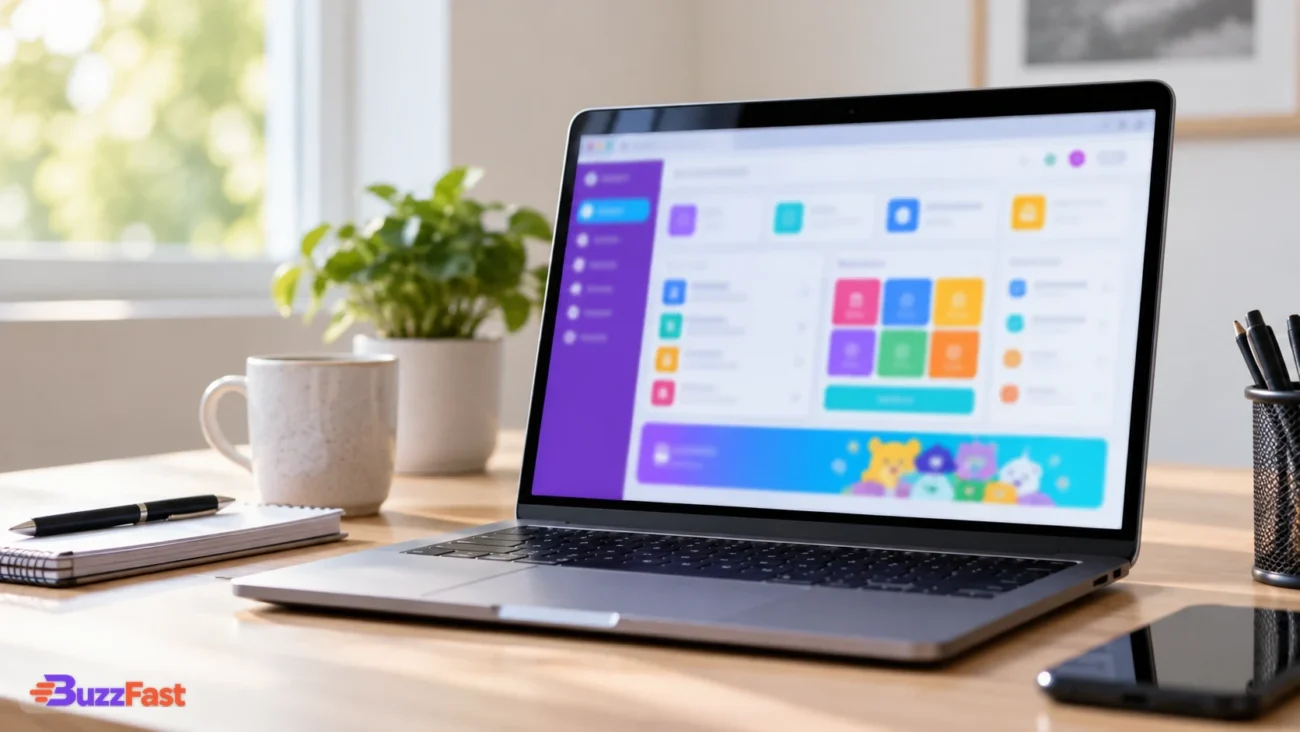
The official Blooket dashboard is the signed-in account workspace at dashboard.blooket.com. It is where users manage question sets, host or assign games, review previous activity and access account-related tools.
If you need to sign in first, use the official Blooket login. If you are a student or participant trying to enter a live game with a Game ID, use play.blooket.com instead. The live-game join page is separate from the dashboard, and students do not need a Blooket account simply to join a teacher-hosted game.
The details below reflect Blooket’s current documentation as checked on September 28, 2026.
How to open the official Blooket dashboard
The safest direct route is the official Blooket dashboard. This is Blooket’s own signed-in workspace, not one of the third-party sites that use “Blooket dashboard” in their domain names or page titles.
Blooket’s current login page supports a username or email address and password, along with Google sign-in. Password recovery is also available. Some third-party guides mention Clever as a standard login option, but that option was not present on the current public login page, so it should not be assumed to be generally available.
The three main destinations are easy to confuse:
- Dashboard: `dashboard.blooket.com` for signed-in account tools.
- Login: `id.blooket.com/login` for authentication.
- Join a game: `play.blooket.com` for participants entering a live session.
A Game ID takes you into a game session. It does not open the teacher dashboard or a host’s reports.
What you can do from the Blooket dashboard
Blooket’s current Help Center documents several core dashboard workflows. The exact navigation can vary by account role and may change over time, so it is more accurate to describe these as major dashboard areas rather than a permanent list of every tab.
Find or create question sets
The dashboard provides access to Blooket’s question-set tools.
Users can create a new set through the Question Set Creator and choose whether that set is public or private. Public sets can also be found through Blooket’s Discover workflow.
From a discovered set, documented actions include previewing it, playing it solo, hosting it, favoriting it and, for eligible Plus users, copying it.
Question sets you own or save can be managed through My Sets and used as the basis for live games or homework.
Host games or assign homework
Teachers can choose a question set and use it to launch a hosted game. Students then join through the separate player flow rather than through the teacher’s dashboard.
Blooket also supports homework assignments. Its current documentation says students can complete assigned homework without creating Blooket accounts.
One current plan difference affects deadlines: Starter users can set homework deadlines up to 14 days away, while Plus users can set deadlines up to 365 days away.
Review History and reports
For teachers, History is one of the most useful dashboard areas because it provides access to previous game activity and reports.
Blooket currently says History appears in the left-hand dashboard navigation. Entries include the game mode, question-set title, number of players and date played, making it possible to identify the session you want before opening its report.
Access Market and account settings
The dashboard also connects to collection and account functions.
Blooket documents some role-specific differences here. For example, students see the Market in the main navigation, while teachers are directed to a Market icon positioned near the bottom of the interface.
Account settings also allow users to change their account role. Contrary to some third-party guides, a Student or Teacher selection is not necessarily permanent: Blooket currently documents options for switching between Student and Teacher account types in Settings.
Where to find Blooket History and reports
To review a previous hosted game, open the dashboard and select History from the left navigation. The History list helps identify individual sessions using the mode, question-set name, player count and date.
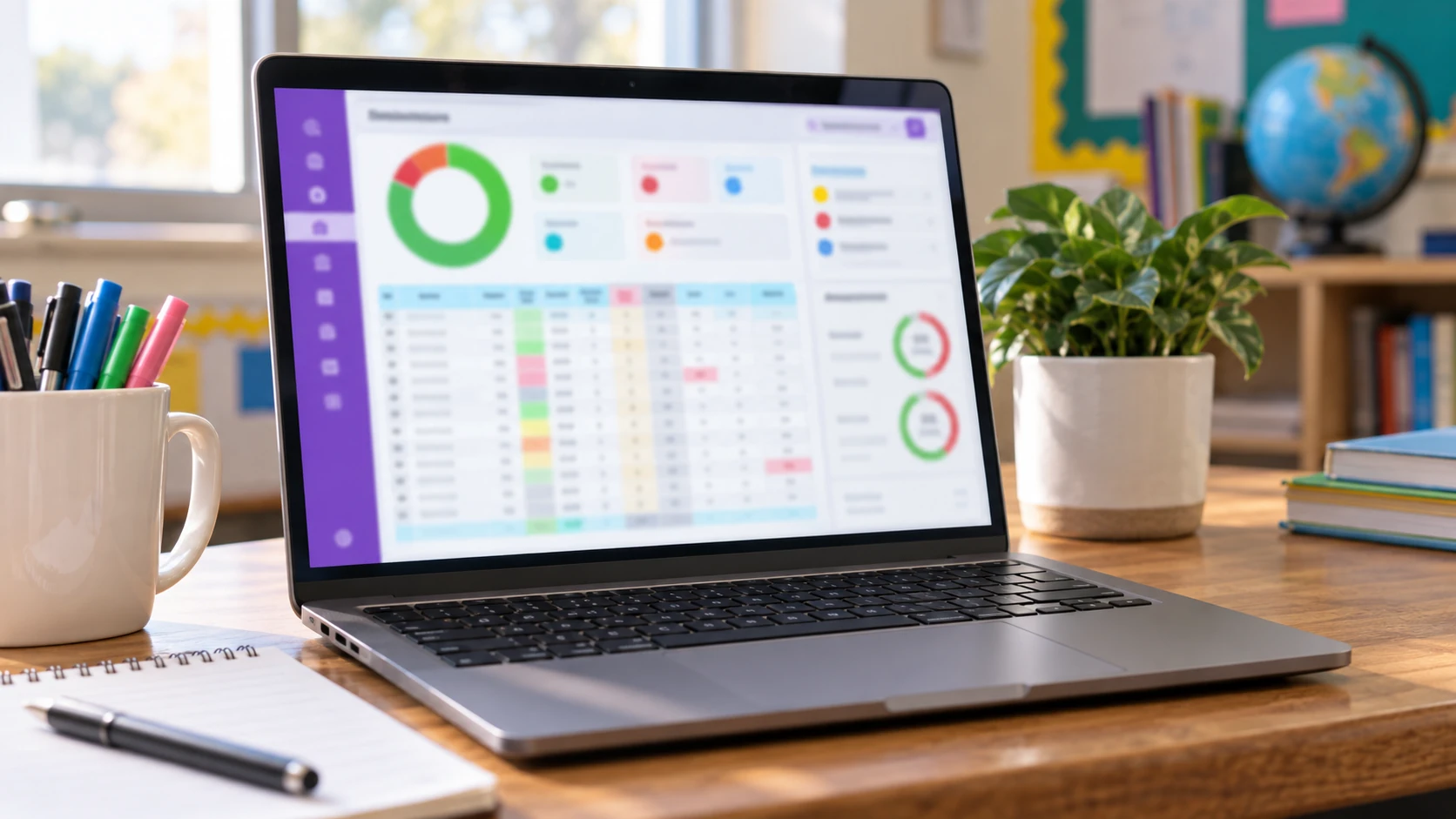
A standard game report can include:
- Class accuracy
- Total correct answers
- Total incorrect answers
- Number of participants
- Total questions answered
- Leaderboard information
These figures serve different purposes. A game score reflects performance within the mechanics of that particular mode, while accuracy and correct-versus-incorrect totals more directly describe how questions were answered.
Blooket Plus adds more detailed reporting. Current documented Plus features include question-level breakdowns, individual student performance reports and spreadsheet downloads.
Blooket also warns that some older games may not contain the full data available in newer report formats. A thinner historical report therefore does not automatically mean that data has malfunctioned.
Teacher dashboard vs student dashboard
Teacher and student accounts do not have completely identical dashboard experiences.
Teacher-oriented workflows include hosting games, assigning homework and opening History and reports from previous sessions. Student documentation focuses more on participating in study activities, managing sets where available and accessing collection features such as the Market.
Some controls also appear in different locations depending on account type. The Market is one documented example.
What is not well supported is a fixed feature-by-feature chart claiming that every dashboard control is permanently exclusive to one role. Blooket’s current documentation shows that role differences exist, but its interface can change, and students are able to use some tools that older third-party guides describe as teacher-only.
If the wrong role was selected when an account was created, Blooket currently allows the account type to be changed through Settings.
Which Blooket dashboard features are free?
Blooket’s Starter plan includes the platform’s main question-set and game functions, while Plus expands several limits and management features.
As of September 28, 2026, Blooket documents a standard live-game limit of 60 players for Starter and 300 players for Plus, with exceptions applying to Racing and team modes.
Other current Plus benefits include:
- Enhanced game reports
- Question-level and individual-student reporting
- Report spreadsheet downloads
- Folders for organizing content
- Homework deadlines of up to 365 days instead of 14 days
Older articles may show different limits. A 2022 educator article, for example, listed a much higher Plus player cap, but that figure has been superseded by Blooket’s current documentation.
What to do if the Blooket dashboard is not working
If login, hosting or joining fails, Blooket identifies several specific causes worth checking before assuming the service itself is unavailable.
Check browser extensions. Blooket says extensions can interfere with login, hosting or joining. Temporarily disabling likely extensions can help isolate the problem.
Check the network. Blooket relies on Firebase infrastructure, and a school or managed network that blocks required backend access can prevent games from working correctly.
Check the username exactly. Blooket usernames are case-sensitive, so capitalization can matter during login.
Use the correct page. A student with a Game ID should be using the player join flow, not trying to enter the code through the account dashboard.
If those checks do not resolve the problem, Blooket’s own debugging and support process is preferable to instructions from unrelated “Blooket dashboard” sites.
What is the Group Plan Dashboard?
Blooket also has a separate Group Plan Dashboard for administrators managing Blooket Plus group plans.

This is not the same thing as the standard dashboard used by an individual teacher or student. Blooket documents Group Plan areas for managing members, settings and organization-level reporting.
Its Group Plan Reports Dashboard can show aggregated activity across a school, department or district, including measures such as hosted games, questions answered and participation over time.
For most people searching for the Blooket dashboard, `dashboard.blooket.com` remains the relevant destination.
Blooket dashboard FAQs
Do students need a Blooket account to play?
No. Blooket says students can join a teacher-hosted live game without creating an account. They can also complete supported homework assignments without an account.
Where do I enter a Blooket Game ID?
Use play.blooket.com or the official player-join route provided by the host. Do not use the dashboard as the game-code entry page.
Blooket’s own current documentation is inconsistent about the exact number of digits in a Game ID, so the important point is to enter the ID exactly as the host provides it.
Where are my previous Blooket games?
For hosted games, open the dashboard and go to History. Blooket says the list identifies sessions by mode, question-set title, player count and date.
Can I change from a Student account to a Teacher account?
Yes. Blooket currently documents account-type switching through Settings, in both directions.
Is the Blooket dashboard free?
The core Blooket Starter service is free, including essential question-set and hosting functions. Plus increases limits and adds features such as enhanced reports, folders and longer homework deadlines.
Why can’t I see detailed student or question reports?
Those detailed reporting tools are currently associated with Blooket Plus. Older games can also have less report detail than newer ones, depending on when and how they were played.
Conclusion
For most users, the key is choosing the correct Blooket page for the task. Use dashboard.blooket.com for the signed-in workspace, the official login page when authentication is required, and play.blooket.com when a participant simply needs to enter a game.
The dashboard’s most useful documented areas include question sets, hosting and homework, History and reports, collection tools and account settings. Because Blooket continues to change its interface and plan limits, current first-party information is more dependable than older guides or unofficial sites that may still show outdated player caps, permanent account-role claims or unsupported login options.
